
n8n Integration
Connect GuidedMind RAG to your n8n workflows with sample templates.
Integrate GuidedMind RAG into your n8n automation workflows. This guide walks through importing and configuring the sample retrieval workflow from our GitHub repository.
Sample Repository
All sample workflows are available at: github.com/guidedmind-ai/n8n-guided-mind-rag
Step 1: Simple Retrieval Flow
The foundational retrieval workflow sends user messages to the GuidedMind RAG engine and returns context-aware answers. This is the "brain" of your AI agent.
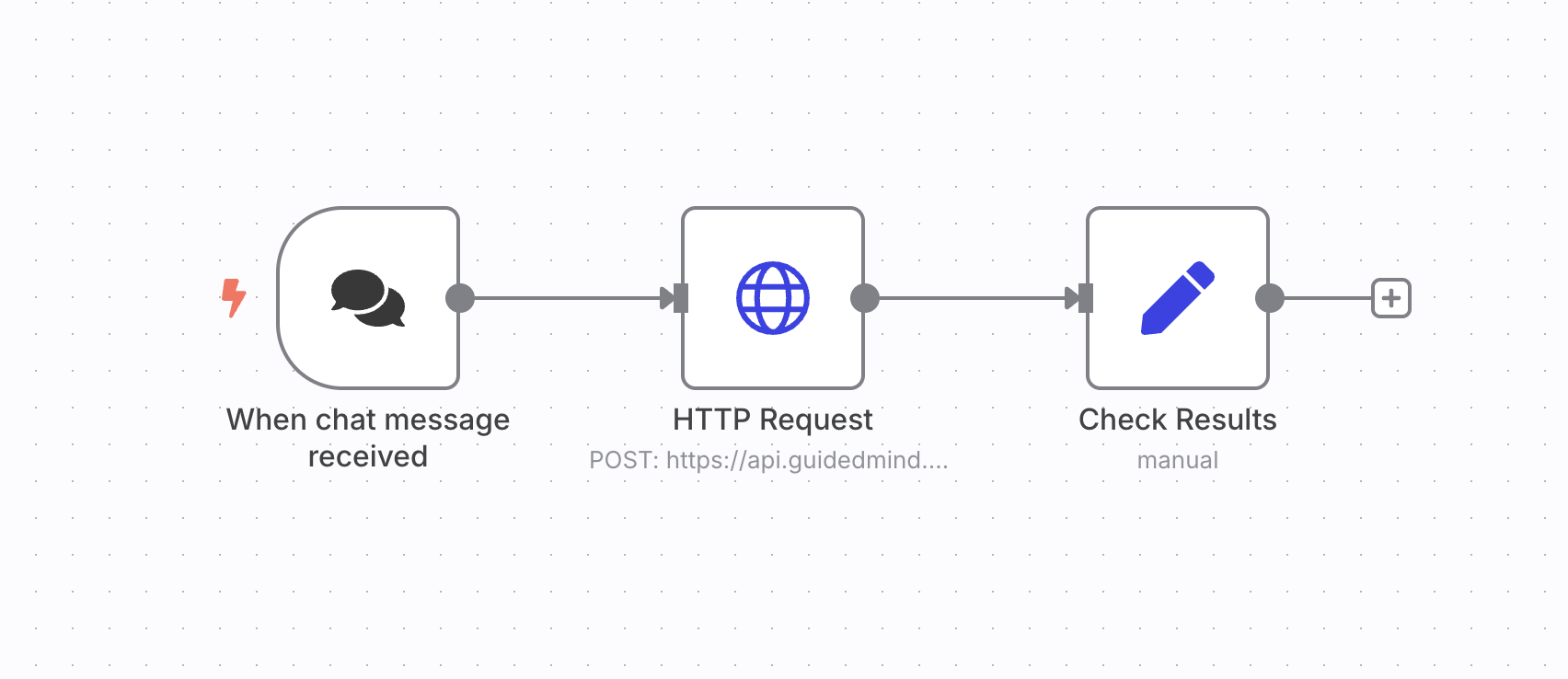
The workflow consists of three nodes connected in a linear pipeline:
- Chat Trigger — Receives the user message
- HTTP Request — Forwards the query to GuidedMind's API
- Check Results — Processes and returns the response
Import the Workflow
- Download
workflow.jsonfromstep-1-retrieval - Open your n8n dashboard
- Click Add Workflow → Import from File
- Select the downloaded JSON file
Configure Credentials
The workflow uses an HTTP Request node to communicate with GuidedMind. Update these values:
| Field | Location | Value |
|---|---|---|
| Authorization Header | HTTP Request → Headers | Bearer sk_your_api_key (replace sk_your_api_key with your actual key) |
| Project ID | HTTP Request → Body → project_id | Your project ID from the GuidedMind dashboard |
Don't forget Bearer: The Authorization header must include the word Bearer followed by a space before your API key. Format: Bearer sk_...
Test the Workflow
- Click Execute Workflow
- Click the Chat button (bottom right of the n8n canvas) or open the Test URL from the Chat Trigger node
- Ask a question relevant to the documents uploaded to your GuidedMind project
Node Breakdown
| Node | Type | Purpose |
|---|---|---|
| When chat message received | Trigger | Captures user input via the n8n hosted chat interface |
| HTTP Request | Action | POSTs the user query to api.guidedmind.ai/v1/chat |
| Edit Fields | Helper | Cleans the JSON response to output only the text answer |
Workflow Architecture
Troubleshooting
401 Unauthorized
Cause: API key is missing, incorrect, or missing the Bearer prefix.
Fix:
- Verify your API key in the GuidedMind dashboard
- Ensure the Authorization header format is exactly
Bearer sk_your_key - Check for extra spaces or invisible characters
404 Not Found
Cause: Project ID is incorrect or the project doesn't exist.
Fix:
- Copy the project ID directly from your GuidedMind dashboard
- Verify the project is active and not deleted
- Check that the API endpoint URL is correct
Empty Response
Cause: Project documents haven't finished indexing.
Fix:
- Wait for document processing to complete in the GuidedMind dashboard
- Verify that documents are uploaded and processed (not pending)
- Test with a query that matches your document content
Next Steps
- Explore additional workflow templates in the GitHub repository
- Combine with Short Memory for conversation context
- Combine with Long Memory for persistent user knowledge